🐱 Scratch Learning Journey
Learn Scratch, One Step at a Time
Check out the Scratch tutorials in the official website by clicking below
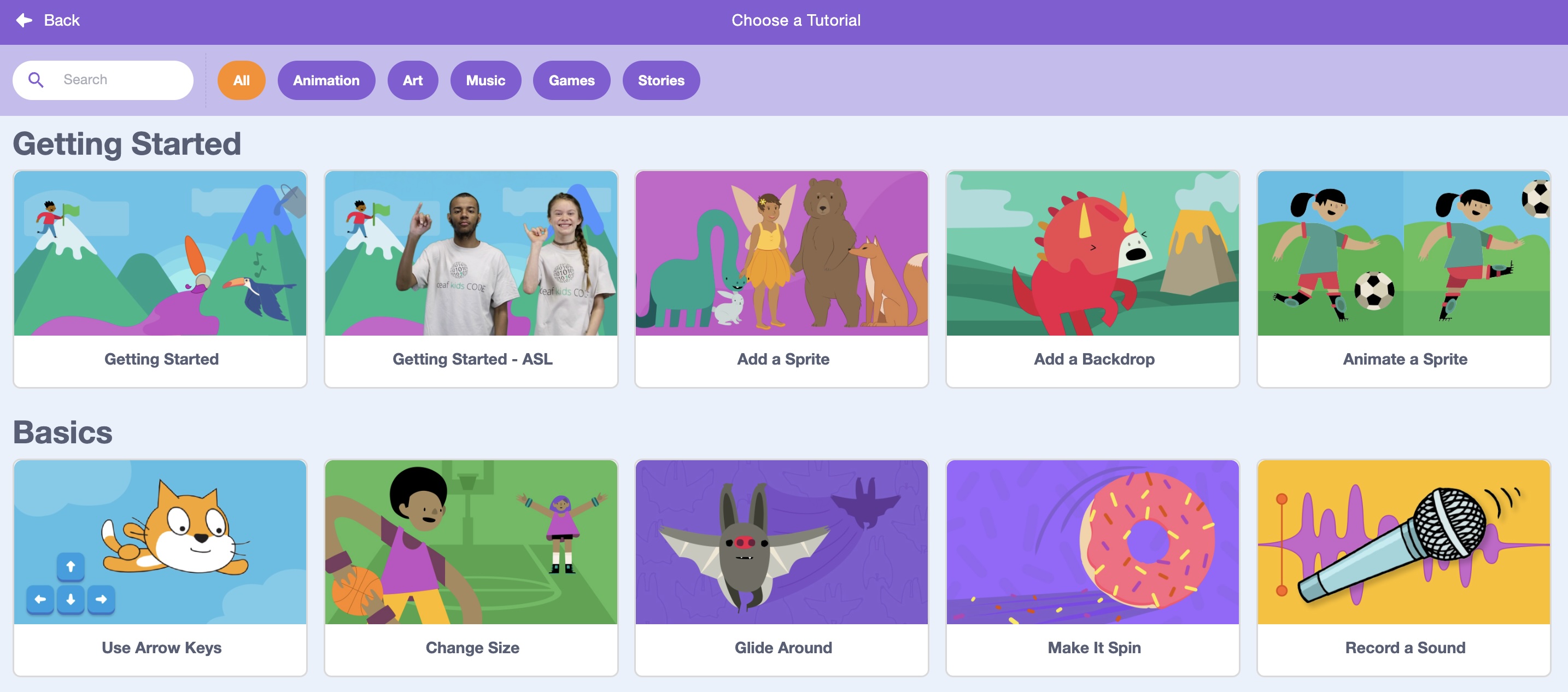 Click to Open
Work through each tutorial in order. Complete the tasks below for each tutorial to unlock your inner coder. No experience needed — just curiosity!
0 completed
26 total tutorials
4 skill levels
Your Progress
0%
Getting Started
Your first steps into the Scratch world
✓
#1
Getting Started
Starter
▾
What you'll learn
Scratch editor layoutStageBlocks paletteRunning a project
🎯 Your Tasks
- 🐱Open Scratch and find the default Scratch Cat on the Stage. Describe out loud what you see: the Stage, the Blocks Palette, and the Scripts area.
- 🟦Drag the "say Hello! for 2 seconds" block onto the Scripts area and click it. Make the cat say your own name instead.
- ▶️Use the green flag and red stop button. Figure out what each one does and explain it to a friend (or yourself!).
✓
#2
Add a Sprite
Starter
▾
What you'll learn
Sprite libraryChoosing spritesMultiple sprites
🎯 Your Tasks
- 🦁Add 3 different animal sprites from the Sprite Library to your Stage. Name each sprite using the name box below the Stage.
- 💬Make each animal say a different fun fact about itself for 2 seconds when the green flag is clicked.
- 🗑️Delete the default Scratch Cat. Your 3 animals now own the stage!
✓
#3
Add a Backdrop
Starter
▾
What you'll learn
Backdrop libraryStage backgroundsMatching scenes
🎯 Your Tasks
- 🌄Add a backdrop that matches where your animal sprites would naturally live (e.g., a jungle for a lion, an ocean for a fish).
- 🖼️Try at least 3 different backdrops and pick your favourite. What makes it the best setting for your sprites?
- 💬Make one sprite say "Welcome to [backdrop name]!" when the green flag is clicked.
✓
#4
Animate a Sprite
Starter
▾
What you'll learn
Costume switchingLoopsWait blocks
🎯 Your Tasks
- 🔄Pick a sprite with multiple costumes (like the cat or a walking character). Use next costume inside a forever loop to make it walk continuously.
- ⏱️Add a wait 0.2 seconds block inside the loop. Then try 0.05 seconds. Which speed looks most natural?
- 🎬Give your animated sprite a fun background and make it feel like a real animated scene. Show it to someone!
Basics
Essential skills every Scratcher needs
✓
#5
Use Arrow Keys
Basics
▾
What you'll learn
Key press eventsMovement blocksUser input
🎯 Your Tasks
- ⬆️Make a sprite move in all 4 directions using the arrow keys. Set the movement speed to 10 steps.
- 🚧Add a fun backdrop and try to navigate your sprite from one side of the screen to the other without going off the edge.
- 🔄Make the sprite face the direction it's moving (left/right using point in direction 90 and -90).
✓
#6
Change Size
Basics
▾
What you'll learn
Set size blockChange size blockGrowing & shrinking
🎯 Your Tasks
- 🔼Make a sprite grow bigger every time you press the Up arrow and shrink when you press the Down arrow.
- 📐Set a minimum size of 20% and a maximum size of 200% so the sprite never disappears or goes huge. (Hint: use if blocks!)
- 🌟Create a fun "power-up" animation: when the green flag is clicked, the sprite starts tiny and grows to full size over 1 second.
✓
#7
Glide Around
Basics
▾
What you'll learn
Glide blockX/Y coordinatesSmooth movement
🎯 Your Tasks
- ✈️Make a butterfly or bird sprite glide to 5 different positions on the stage, one after another, like it's visiting flowers.
- 📍Use the X and Y display at the bottom of the stage to find the coordinates of each corner of the screen. Write them down!
- 🔁Wrap the glide sequence in a forever loop so your sprite tours the stage endlessly.
✓
#8
Make It Spin
Basics
▾
What you'll learn
Turn blocksDegrees of rotationRotation styles
🎯 Your Tasks
- 🌀Make a spinner sprite (try a star or pinwheel) rotate continuously using a forever loop and turn 5 degrees.
- ⚡Press the spacebar to double the spin speed and release to slow it back down.
- 🎡Set the rotation style to "don't rotate" — what happens? Try all 3 rotation styles and describe the difference.
✓
#9
Record a Sound
Basics
▾
What you'll learn
Sound editorRecording audioPlay sound block
🎯 Your Tasks
- 🎙️Record yourself making a funny sound effect (a whoosh, a pop, or a silly voice). Give it a clear name.
- 🔔Make your sprite play the sound when the green flag is clicked. Add a say block that appears at the same time.
- 🐾Record a second sound: your sprite's "goodbye" sound. Play the first when it appears, and the second when you press the spacebar.
✓
#10
Hide and Show
Basics
▾
What you'll learn
Hide blockShow blockSequencing
🎯 Your Tasks
- 👻Make a ghost sprite that is hidden at the start. When you press the spacebar it appears, stays for 2 seconds, then vanishes again.
- 🎩Create a "magic trick": make a rabbit sprite hide, then show a hat sprite, wait 1 second, hide the hat, and show the rabbit — abracadabra!
- 💡Use hide and show to make 3 sprites take turns appearing, one at a time, like slides in a presentation.
Intermediate
Level up your Scratch superpowers
✓
#11
Add Effects
Intermediate
▾
What you'll learn
Color effectGhost effectClear graphic effects
🎯 Your Tasks
- 🌈Make a sprite cycle through all colors automatically using a forever loop and change color effect by 5.
- 👁️Create a "fading ghost" effect: when the spacebar is pressed, the sprite gradually becomes transparent (ghost effect increases to 100) then fades back in.
- 🎭Use the whirl, fisheye, and pixelate effects on the same sprite one after another. Which looks coolest?
✓
#12
Make it Fly
Intermediate
▾
What you'll learn
Gravity simulationVariablesY-position changes
🎯 Your Tasks
- 🚀Make a rocket sprite that rises up the screen when you hold the Up arrow key and slowly falls back down when you let go (simulate gravity with a variable).
- ☁️Add a clouds backdrop and make the rocket start at the bottom of the screen each time the green flag is clicked.
- 🌟Add a star sprite that moves in from the right side of the stage. If your rocket reaches the top, make it say "I reached space!"
✓
#13
Make Music
Intermediate
▾
What you'll learn
Music extensionPlay note blockInstruments
🎯 Your Tasks
- 🎹Add the Music extension. Create a sprite that plays the first 5 notes of "Happy Birthday" when the green flag is clicked. (Notes: 60, 60, 62, 60, 65)
- 🥁Make 4 different drum sprites (or buttons) that each play a different drum beat when clicked — build your own drum kit!
- 🎵Loop a short 4-beat rhythm using a repeat block. Change the instrument to 3 different options and pick your favourite.
✓
#14
Video Sensing
Intermediate
▾
What you'll learn
Video Sensing extensionMotion detectionCamera interaction
🎯 Your Tasks
- 📹Add the Video Sensing extension. Make a sprite react (jump or spin) when it detects motion from your camera above 30.
- 🎨Make the sprite change colour each time motion is detected — try waving your hand to trigger a rainbow effect!
- 🎮Create a simple "dodge" game: a sprite moves around randomly, and you must wave your hand to scare it away before time runs out.
✓
#15
Face Sensing
Intermediate
▾
What you'll learn
Face detectionNose/eye trackingBody movement control
🎯 Your Tasks
- 😊Use the face-sensing feature to make a sprite follow your nose position around the screen.
- 😮Make a sprite react to when your mouth is open — try opening your mouth wide to make a character sing!
- 🎪Create a "puppet show": control a puppet sprite with your face and make it say something funny when you nod your head.
✓
#16
Talking Tales
Intermediate
▾
What you'll learn
Text to speech extensionVoices & languagesStory sequencing
🎯 Your Tasks
- 🗣️Add the Text to Speech extension. Make a character speak 3 sentences of a short story out loud using different voices.
- 🎭Create a 2-character dialogue: Character A speaks, then Character B responds, going back and forth at least 4 times.
- 🌍Try the same sentence spoken in 3 different voices (tenor, squeak, giant). Which voice fits your character best?
Creative Projects
Apply everything — build real Scratch projects!
✓
#17
Animate a Name
Project
▾
What you'll learn
Letter spritesBroadcast messagesCoordinating sprites
🎯 Your Tasks
- 🔤Create a sprite for each letter of your first name. Arrange them to spell your name on the Stage.
- 💃Make each letter do something unique when the green flag is clicked: spin, jump, change colour, or grow. No two letters should do the same thing!
- 🎶Add a background soundtrack and make all the letters finish their animation at the same time for a grand finale.
✓
#18
Animate a Character
Project
▾
What you'll learn
Character designCostume animationReactions to input
🎯 Your Tasks
- 🦸Design or pick a character. Make it walk left and right using arrow keys with a walking animation (costume switching).
- 🎭Add an idle animation (the character bounces or blinks) that plays when no key is pressed.
- 💥When the spacebar is pressed, play a special "power move" animation (a spin, a jump, a flash of colour).
✓
#19
Create a Story
Project
▾
What you'll learn
Scene transitionsBackdrop switchingSequenced dialogue
🎯 Your Tasks
- 📖Write a 3-scene story with a beginning, middle, and end. Use backdrop switches to show each scene.
- 💬Include at least 2 characters that have a conversation using say blocks with proper timing so they don't talk at the same time.
- 🎬Add a title screen with your story's name and "Press Space to Start". The story only begins when the player presses space.
✓
#20
Create Animations That Talk
Project
▾
What you'll learn
Text to speech + animationSyncing audio and motion
🎯 Your Tasks
- 🗣️Create a character that speaks its lines out loud using the Text to Speech extension AND shows a say bubble at the same time.
- 🕺While the character speaks, animate it: it should move, gesture, or change expression in sync with what it's saying.
- 🎙️Make a short 30-second animated "commercial" for your favourite snack — the character talks, moves, and convinces you to buy it!
✓
#21
Imagine a World
Project
▾
What you'll learn
World-buildingCloningAtmospheric effects
🎯 Your Tasks
- 🌍Invent a world with a unique theme (underwater city, candy planet, robot factory). Design a backdrop and add at least 4 different sprites that belong there.
- 🌟Use the create clone block to fill your world with clones of one sprite (e.g., falling snowflakes, floating bubbles, flying birds).
- 🔊Add ambient sound effects and make at least one sprite react when you click on it (it says something funny or does a little dance).
✓
#22
Pong Game
Project
▾
What you'll learn
Collision detectionBouncingScore variable
🎯 Your Tasks
- 🏓Build a basic Pong game: a ball bounces around the screen. A paddle at the bottom moves left/right with arrow keys.
- 🔢Add a score: every time the ball hits the paddle, the score goes up by 1. Display it on screen.
- 💀Add a "Game Over" screen that appears if the ball touches the bottom edge. Show the final score and let the player press Space to restart.
✓
#23
Make a Clicker Game
Project
▾
What you'll learn
Mouse click eventsScore trackingTimer
🎯 Your Tasks
- 🖱️Create a target sprite that moves to a random position every time you click it. Each click adds 1 to your score.
- ⏱️Add a 30-second countdown timer. When time runs out, stop the game and show a "Your Score: X" message.
- 🏆Add a high score: if the player beats their previous best, make the screen flash and say "New High Score!"
✓
#24
Make a Chase Game
Project
▾
What you'll learn
Sprite followingLives systemDifficulty scaling
🎯 Your Tasks
- 🏃Make a hero sprite the player controls with arrow keys, and an enemy sprite that automatically chases the hero.
- ❤️Add 3 lives: every time the enemy catches the hero, the player loses a life. When 0 lives remain, show "Game Over".
- ⚡Make the enemy get slightly faster every 10 seconds. Can you survive 60 seconds?
✓
#25
Code a Cartoon
Project
▾
What you'll learn
Broadcast & receiveParallel scriptsSound + animation sync
🎯 Your Tasks
- 📺Create a 1-minute cartoon episode with at least 3 scenes. Use broadcast messages to trigger each new scene.
- 🎶Add background music that changes with each scene, and at least one character that speaks using recorded or Text-to-Speech audio.
- 🎬Add a "replay" button at the end that restarts the cartoon from scene 1. Test it with a friend!
✓
#26
Animate an Adventure Game
Project
▾
What you'll learn
Multi-level designInventory/collectiblesFull game loop
🎯 Your Tasks
- 🗺️Design a mini adventure game with 2 levels (backdrops). The player collects coins/stars in Level 1 to unlock Level 2.
- 💎Add collectible items using clones. Each collected item plays a sound and increases a score variable.
- 🎖️Create a win screen for completing Level 2 that shows the final score and a personalised message based on how many items were collected (e.g., "Amazing!" for 10+, "Good job!" for 5+).